howto: Add a Worker
Access the selection screen
Go to the System Administrator screen (Menu 18).
Key ‘4' on the command line.
Press Enter.
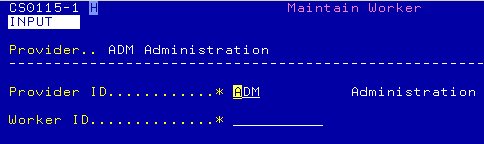
The “Maintain Worker” selection screen will appear.
Access the detail screen
ONECase defaults to your Provider ID.
Please be careful to key the correct Provider ID.
Key the Worker ID.
Press Enter.
The “Maintain Workers” detail screen will appear.
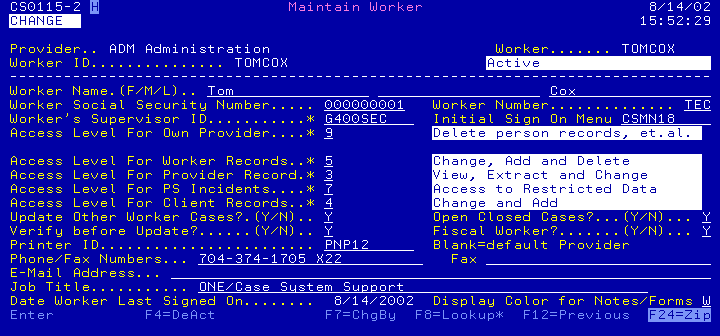
Key all the data fields.
For information about the fields, read howto: Maintain Workers.
Most of the fields should be self-explanatory.
For more information about each field, use the Help feature.
If you just press Enter, the program will show you the fields which must be keyed.
If you key only the mandatory fields, you will not use all the features of ONECase.
Be careful to key the appropriate Printer ID.
It should be the one the worker will use most of the time.
Use the F8 lookup function if you need to.
Press Enter.
The ‘VERIFY’ screen will appear.
The F11 function key will appear at the bottom of the ‘VERIFY’ screen.
Grant authority to access other Provider’s data.
Press the ‘F11' key.
The authority screen will appear.
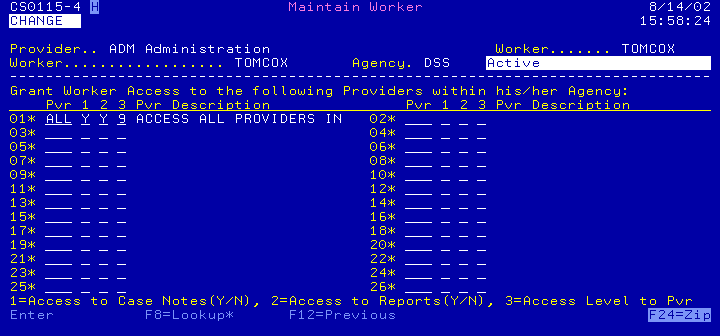
If you want the worker to have access to all the other Providers’ data,
Key ‘ALL’ into the Provider field,
Key ‘Y’ into the next two fields,
Key ‘9' into the final field.
Press Enter again.
OR
If you want LIMIT a worker’s access to only or two other Provider’s data,
Key the Provider Code into the Provider field,
Key ‘Y’ into the next two fields,
Key ‘9' into the final field.
Repeat for each Provider.
Press Enter again.
NOTE: The password to sign on to the AS/400 server will be the Worker ID.
The default ONECase password is defined in the Provider records but is usually ‘1CASE’.
Maintain “Provider” Workers
Sign on as ‘G400SEC’ worker.
“Provider” workers are those defined by Cox & Company and copied from G4001DB.
Use “Maintain Workers” on Menu 18 to maintain data for the initial workers:
ADM ADS CDC CWS IM RC SI
Create a user profile and add a Worker record for each worker.
Add Administrators to Worker file
Sign on as ‘G400SEC’ worker.
ONECase administrators are the 2-3 workers who support for the entire agency.
We will add the supervisors and co-ordinators in the next step.
Create a user profile and add a Worker record for each worker.
Add Supervisors and Co-ordinators
Sign on as ‘G400SEC’ worker.
Create a user profile and add a Worker record for each worker.
They are the workers in each Provider who will be able to:
Give a worker a default password.
Re-open closed cases.
Receive referrals to a Service (not to a specific worker).
Add all other Workers
Sign on as ‘G400SEC’ worker.
Create a user profile and add a Worker record for each worker.
Test the User Profile and Worker ID
Access the AS/400 ‘Sign On’ screen. It looks like the image shown below.
Key the Worker ID and password you created in Step 1, press Enter.
You will not be able to see the password you keyed.
Do not key any data into the other fields.
.
Sign On
System . . . . . : S1011CDR
Subsystem . . . . : QBASE
Display . . . . . : QPADEV0006
User . . . . . . . . . . . . . .
Password . . . . . . . . . . . .
Program/procedure . . . . . . . .
Menu . . . . . . . . . . . . . .
Current library . . . . . . . . .
...
(C) COPYRIGHT IBM CORP. 1980, 1995.
.
If the sign-on was successful,
the system will present the Initial Menu defined in the worker User Profile.
If it is not successful, read the message and do what it says.
More than likely, you simply need to re-key the password.
Check the ONECase password
After signing onto AS/400 successfully, you will see a ONECase screen.
The screen you see depends upon the Provider of the worker you just set up.
Regardless, select an option from the screen, press Enter.
You will see the ‘Validate Worker Sign On’ screen.
Key the default ONECase password – probably ‘1CASE’.
The line ‘Please Enter a New Password..............’ will be displayed as reverse-image.
Key the ONECase password the worker wants to use – for now, key the ‘Worker ID’.
for example, if the Worker ID is ‘TOMCOX’ make the password ‘TOMCOX’ also.
Press Enter.
.
CS0201-1 Validate Worker Sign On 3/28/97
INPUT 9:21:01
Please Enter Your Current Password....... <------ key ‘1CASE’ here.
Please Enter a New Password.............. <------ key the Worker ID here.
...
ENTER F3=Exit
.
If you keyed the password correctly,
ONECase will display the first screen for the option you selected.
If you did not, key the password again.
Inform the worker
The worker is now set up.
You will need to give the worker three pieces of data:
ONECase Worker ID, which is the same as the AS/400 ‘Sign On’ ID.
AS/400 ‘Sign On’ password.
ONECase password.
For convenience, these data values may be the same.
Lecture the worker on the consequences of letting other workers use her password!
After the lecture, you are finished.
User Authority Levels
Cox & Company will work with you to assign Workers to security groups, each of which may have different levels of access to the
ONECase data files. We will also show you where and how to tell ONECase the Workers who belong to each group. Controlling
access to data about your clients can be an important issue.